
Install cPanel Guide: Hostname, DNS, SSL, and Security Basics
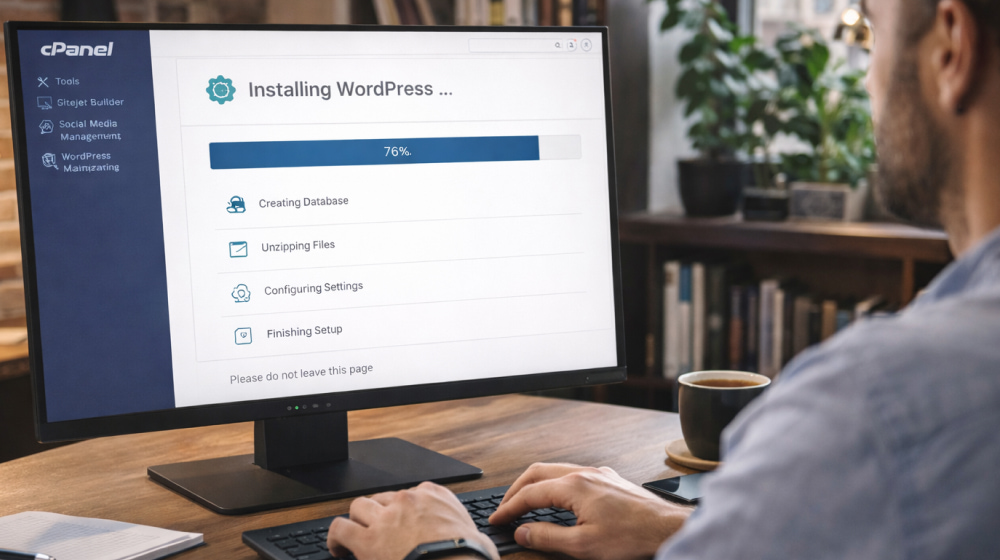
Install cPanel on Windows 10 & Ubuntu Linux for Free
DownloadLaunching a server control panel can feel intimidating at first, but once you understand the flow, the process becomes predictable and repeatable. This guide focuses on the real-world steps you need, from prerequisites to validation, plus a few tips that help you avoid the most common pitfalls.
Before You Start: What You Need Ready
- A VPS or dedicated server with root access (SSH).
- A supported Linux distribution (commonly AlmaLinux, Rocky Linux, or CloudLinux) with a clean OS install.
- A fully qualified domain name (FQDN) set for your hostname.
- Correct DNS records (A record for the hostname, and ideally reverse DNS/PTR set by your provider).
- Minimum resources: at least 2 GB RAM (4 GB+ recommended) and adequate disk space for websites, email, and backups.
Tip: A fresh server is best. Avoid installing multiple control panels or extra web stacks before setup, because conflicting services and ports can complicate the configuration.
repare the Server Environment
Start by connecting via SSH and making sure your OS is updated. Also confirm your hostname is set to an FQDN, because many services (mail, SSL, and system identification) rely on it.
- Update the server packages and reboot if the kernel updates require it.
- Set a proper hostname like server1.example.com and verify it resolves correctly.
- Ensure your time settings are correct and NTP is enabled to prevent SSL and authentication issues.
- Confirm that required outbound connections are not blocked (firewall/provider rules).
When you’re ready to install cPanel, double-check that no other web server stack is already running and that the machine is dedicated to hosting tasks rather than general workloads.
Choose the Right Installation Approach
Many users search for a cPanel install command immediately, but the safest approach is to confirm compatibility first: cPanel is designed for specific Linux server environments and typically expects a clean system.
If you’re planning a cPanel installation for client hosting, think ahead about email deliverability, SSL automation, and backups, because those decisions influence initial settings and future maintenance.
Windows Considerations (Important Clarification)
A frequent question is how to install cPanel on Windows 10. In practice, cPanel is not intended to run natively on Windows as a production control panel. If you need a Windows workstation workflow, a common option is to manage a Linux server remotely from Windows using SSH tools and a browser, or to use virtualization for testing environments.
Installation Flow Overview
Most setups follow a consistent sequence: get the installer, run it, wait for dependencies to complete, then verify services. During cPanel download and install, the installer fetches packages and configures core services like the web server, DNS components, mail stack, and security tooling.
What Typically Happens During Installation
- System checks and dependency resolution.
- Download and configuration of required components.
- Service initialization and default security baseline setup.
- Creation of initial management endpoints and account frameworks.
Post-Install Checklist
After you install latest cPanel, the first login is only the beginning. The next steps are what transform a working panel into a stable hosting platform.
| Task | Why it matters | Quick verification |
|---|---|---|
| Set up licensing and initial configuration | Enables updates, features, and stable operation | Confirm the panel loads and shows an active license |
| Secure SSH and admin access | Reduces brute-force risk and unauthorized entry | Key-based login, restricted ports/IPs, MFA where possible |
| Configure firewall and service ports | Prevents exposure of unnecessary services | Only required ports are open and reachable |
| Enable SSL and hostname validation | Avoids browser warnings and improves trust | Valid cert shown for panel and hostname |
| Set up backups and retention rules | Ensures recovery from mistakes or outages | Test restore of a small account or file set |
Common Mistakes and How to Avoid Them
- Hostname isn’t an FQDN: This can lead to mail and SSL issues. Always verify forward DNS before continuing.
- Incorrect DNS or missing reverse DNS: Email reputation suffers quickly without proper PTR alignment.
- Insufficient resources: Low RAM or disk can cause timeouts, failed services, or unstable performance.
- Installing on a non-clean server: Conflicting packages and services can force manual troubleshooting later.
- Skipping security hardening: Default settings are not enough for exposed servers.
Practical Recommendations for a Smooth Setup
- Plan your hostname and DNS before the server goes live.
- Keep the environment minimal until the panel is installed and stable.
- Enable automatic updates where appropriate, but schedule maintenance windows for major changes.
- Implement monitoring early (CPU, RAM, disk I/O, and mail queue).
Final Notes
Once the panel is operational, focus on stability: secure access, reliable backups, and predictable updates. If your goal is client hosting, test a full lifecycle early create an account, issue SSL, send/receive email, and confirm restore workflows so you know the system behaves correctly before moving production traffic.